Troubleshooting · Apps, sign-in & security
Signs of malware (pop-ups, browser hijacked) or Windows Security won't open
How to spot a malware infection or a fake virus warning, clean the PC with Windows Security and a browser reset, and what to do when the Windows Security app itself won't open or stays blank.
Published
Symptoms
Pop-ups appear even when no browser is open, or a full-screen "virus" alert tells you to call a phone number.
Your homepage, new tab page or search engine changed and keeps coming back.
Strange toolbars or extensions appear, or web searches end up on unfamiliar sites.
The PC is suddenly slow, the fan runs constantly, or programs you never installed show up.
Windows Security won't open, opens blank, says it is turned off, or the Virus & threat protection page is missing.
Your antivirus or Windows Update turns itself off.
Cause
Unwanted software bundled with downloads. Free tools, cracked programs and "video player" installers often add extras.
Malicious browser extensions or notification permissions. These cause pop-ups and redirects, with or without a virus on the PC.
Scam sites. A fake security alert in a browser tab is a scam, not a scan result. Microsoft says genuine error messages never include a phone number, and it never asks for payment by gift card or cryptocurrency.
Real malware. Some threats switch off security tools to stay hidden, which can make Windows Security hard to open.
Software conflicts. Another antivirus product can take over Windows Security's controls, or a damaged app package can leave it blank.
Solution
Skip banking and shopping on this PC until you've finished. Stay online long enough to update Windows Security's definitions in Fix 2. Work through the steps in order, and stop when the symptoms are gone.
Fix 1: Close a scare pop-up safely
Don't call the number and don't click inside the alert.
Close the browser tab. If it won't close, press Alt + F4, or open Task Manager (Ctrl + Shift + Esc), select the browser and choose End task.
When the browser reopens, decline the offer to restore tabs so the page doesn't return.
If you paid or let someone control your PC, ring your bank straight away and change important passwords from a different, clean device.
Fix 2: Scan with Windows Security
Select Start, type Windows Security and open it.
Choose Virus & threat protection. Under Virus & threat protection updates, select Check for updates, so definitions are current.
Select Quick scan and wait for it to finish.
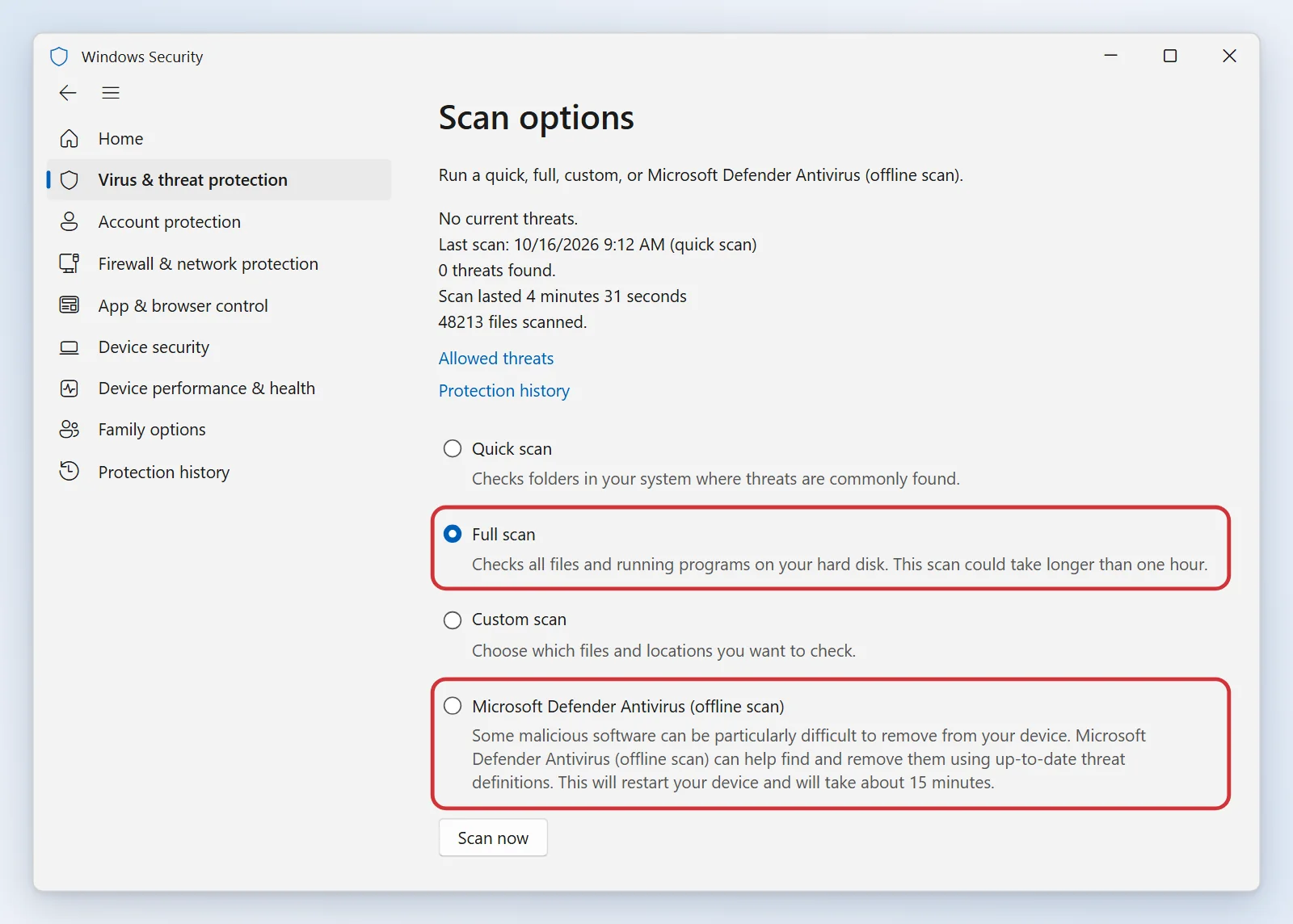
Then select Scan options > Full scan > Scan now. It can take an hour or more, so leave the PC running and plugged in.
If threats are found, select Start actions and let Windows remove or quarantine them. Restart afterwards.
Fix 3: Run the offline scan
This scan runs before Windows loads, so it can catch threats that hide. Save your work first, because the PC restarts. If your drive uses BitLocker, suspend it or have your recovery key ready.
In Windows Security, go to Virus & threat protection > Scan options.
Select Microsoft Defender Antivirus (offline scan) > Scan now and confirm.
Wait about 15 minutes. Afterwards, review Protection history in the same app.
Fix 4: Clean up the browser
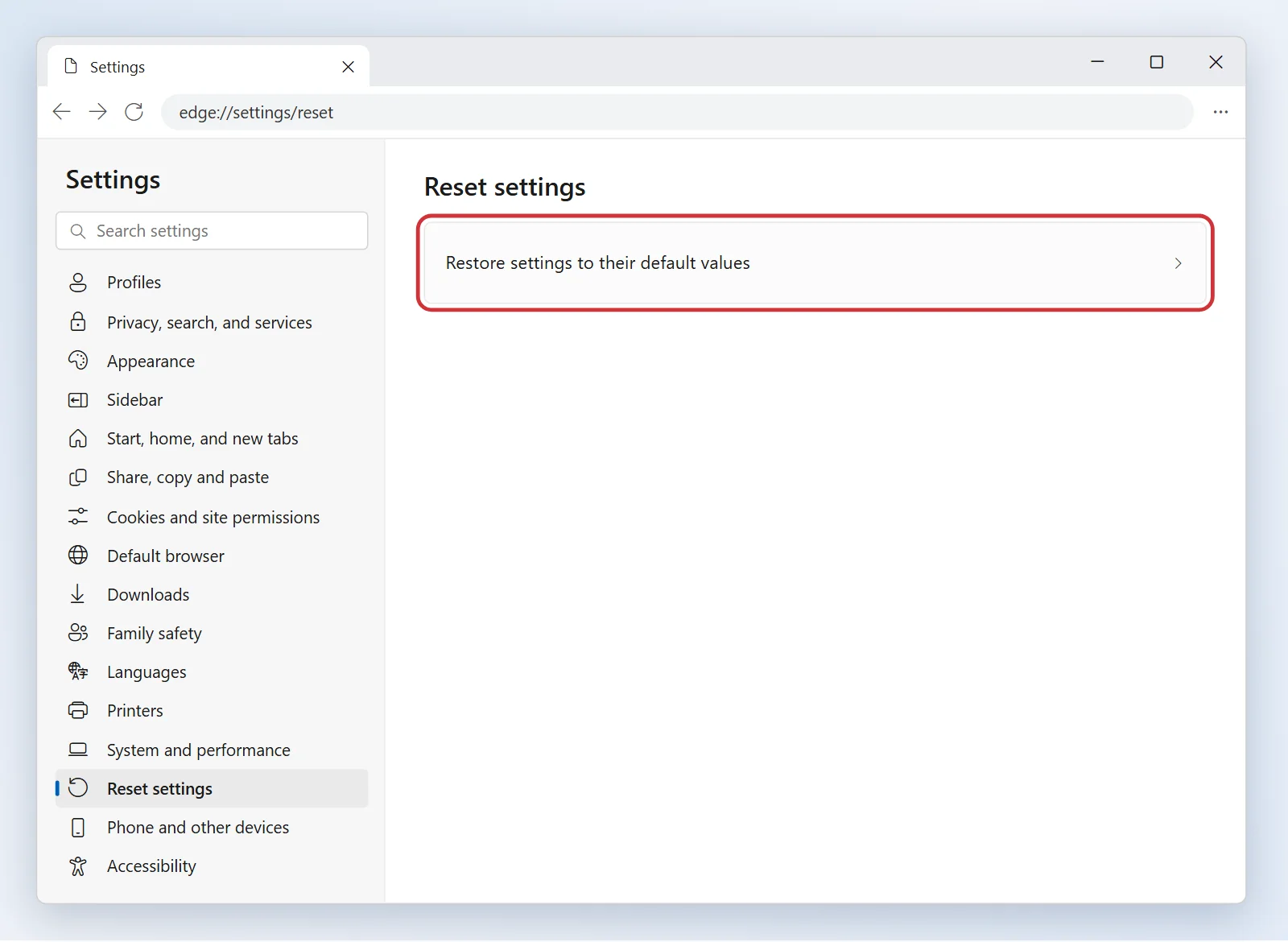
In Microsoft Edge, open Settings > Reset settings > Restore settings to their default values > Reset. This resets the startup page, new tab page, search engine and pinned tabs, and turns off extensions. Your favorites, history and saved passwords stay.
Type
edge://extensionsin the address bar and remove anything you don't recognise.Go to Settings > Cookies and site permissions > Notifications and block or remove sites you don't trust.
Check Settings > Privacy, search, and services > Address bar and search for unfamiliar search engines.
If you use another browser, find its equivalent reset option in its own settings.
Fix 5: Remove unwanted programs
Open Settings > Apps > Installed apps and sort by Install date.
Uninstall anything you don't recognise or didn't mean to install, especially "PC cleaners", "driver updaters" and toolbars.
Open Settings > Apps > Startup and switch off items you don't need.
For a second opinion, you can run Microsoft Safety Scanner. It expires ten days after download, so get a fresh copy and use the Microsoft page to find it (see the link below).
Fix 6: If Windows Security won't open
Restart the PC. Then check Settings > Windows Update for pending updates.
If you have another security program installed, open its window and check whether it says it manages protection. Windows Security hands control to it. If you uninstall it, restart before testing.
Go to Settings > Apps > Installed apps, open Windows Security > Advanced options and select Repair, then Reset if needed.
If it still won't open, reset the app package. Run this in Windows Terminal (Admin):
Get-AppxPackage Microsoft.SecHealthUI -AllUsers | Reset-AppxPackageNext, repair the system files. These two commands also need an administrator terminal. Run them in this order and restart afterwards:
DISM.exe /Online /Cleanup-Image /RestoreHealth
sfc /scannow
Finally, press Windows + R, type services.msc and confirm that Security Center and Microsoft Defender Antivirus Service are running. Malware often stops these on purpose, so a service that keeps stopping is another reason to run the offline scan from Fix 3.
Don't download "Windows Security fixer" files or registry tweaks from websites. If the app package is missing entirely, a repair install (Setup from a Windows 11 ISO, keeping files and apps) or Settings > System > Recovery > Reset this PC is the safe route. Back up your files first.
More information
Keep Windows, Edge and your apps updated, and leave real-time protection switched on.
Download software only from its maker or the Microsoft Store. Be wary of "free" versions of paid programs.
Reset your important passwords if you suspect a keylogger, and turn on two-step verification.
Windows 10: The scan options and offline scan are under Settings > Update & Security > Windows Security > Virus & threat protection, and the app list is Apps & features.
Report scams at Microsoft's report-a-scam page.
Read more: Avoid and report Microsoft technical support scams, Troubleshoot problems with detecting and removing malware and Microsoft Safety Scanner.
Was this article helpful?
Related articles
- Can't sign in to Windows (forgotten password or PIN not working)
Troubleshooting
How to get back into Windows when you've forgotten your password, or your PIN is rejected. Separate routes for Microsoft accounts and local accounts, plus what to do if you're locked out.
Still need help? Can’t find the answer? Our team is happy to help. Contact us