Troubleshooting · Apps, sign-in & security
Can't sign in to Windows (forgotten password or PIN not working)
How to get back into Windows when you've forgotten your password, or your PIN is rejected. Separate routes for Microsoft accounts and local accounts, plus what to do if you're locked out.
Published
Symptoms
You type your password and Windows says it is incorrect, even though you think it's right.
The PIN box refuses your PIN, or tells you the PIN isn't available and asks you to set it up again.
The sign-in screen doesn't show the "I forgot my PIN" link.
You can't remember your password at all because you always sign in with a PIN, fingerprint or face.
Your account is locked after too many wrong attempts.
The PIN, fingerprint or face sign-in worked until a recent update.
Cause
A mistyped password. Caps Lock, Num Lock or the wrong keyboard layout are far more common than a forgotten password.
PIN and password mix-ups. On a Microsoft account, the PIN only works on that one PC. The password is the one you use online.
Changed password on another device. If you reset your Microsoft account password elsewhere, the PC needs to be online to learn it.
A damaged Windows Hello setup. Updates, hardware changes or a cleared security chip can invalidate the PIN.
Account type confusion. A Microsoft account and a local account recover in different ways.
Managed devices. Work or school accounts follow rules set by an administrator.
Solution
Microsoft Support cannot retrieve or bypass a lost password, so use the official routes below. Do them in order and stop when you're in.
Fix 1: Check the basics
Look at the sign-in screen: make sure the correct account is selected.
Check Caps Lock and Num Lock, and the language and layout indicator at the bottom right of the screen.
Select the eye icon in the password box to see what you're typing.
Confirm the PC is online. Look at the network icon on the sign-in screen, because a Microsoft account password change made elsewhere is only picked up when the PC can reach the internet.
Try your old password as well as the new one if you changed it recently.
Fix 2: Reset a forgotten PIN
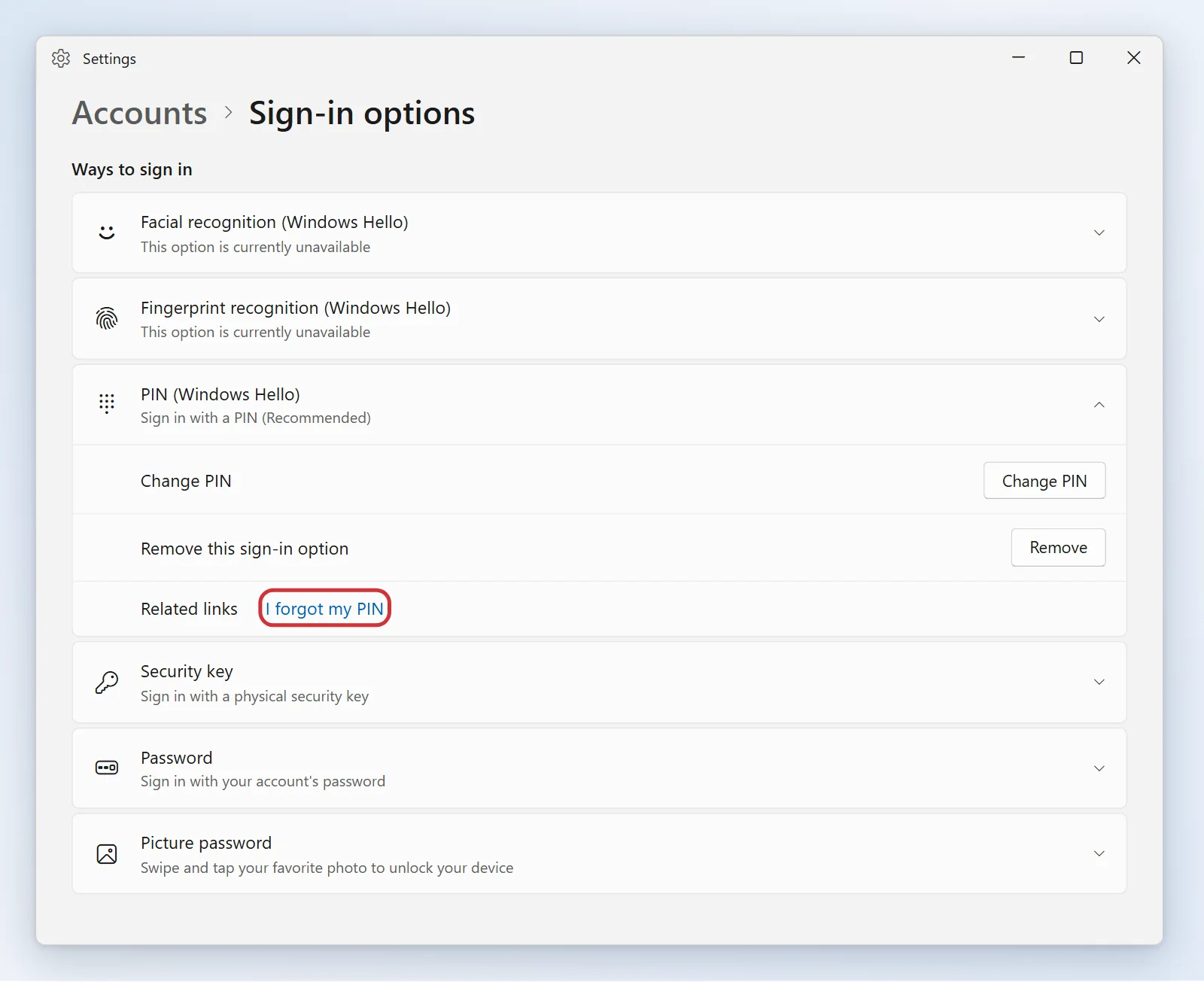
Under the PIN box, select I forgot my PIN and follow the prompts to verify the account.
If that link is missing, select Sign-in options, then Enter your password, and sign in with your account password.
Once you're in, open Settings > Accounts > Sign-in options, select PIN (Windows Hello) and choose I forgot my PIN. You can also choose Change PIN if you remember the old one.
Create the new PIN. If you used a fingerprint or face, set those up again afterwards.
The I forgot my PIN link on the sign-in screen exists only for Microsoft accounts. On a local account, sign in with the password and change the PIN in Settings.
Fix 3: Reset a Microsoft account password
On the sign-in screen, select I forgot my password. If it isn't offered, select Sign-in options, pick Web sign-in and follow the prompts to Forgot my password.
Or use any other phone or computer: open a browser, go to the Microsoft account sign-in page, and choose Forgot password.
Verify yourself with the code sent to your recovery email or phone, then set a new password.
Back at the PC, connect to the internet and sign in with the new password. Then create a fresh PIN as in Fix 2.
If Microsoft's page says the account is locked, wait and then follow the instructions it gives, such as the recovery form. Don't keep guessing.
Fix 4: Reset a local account password
Local accounts have no email behind them, so recovery depends on what you set up.
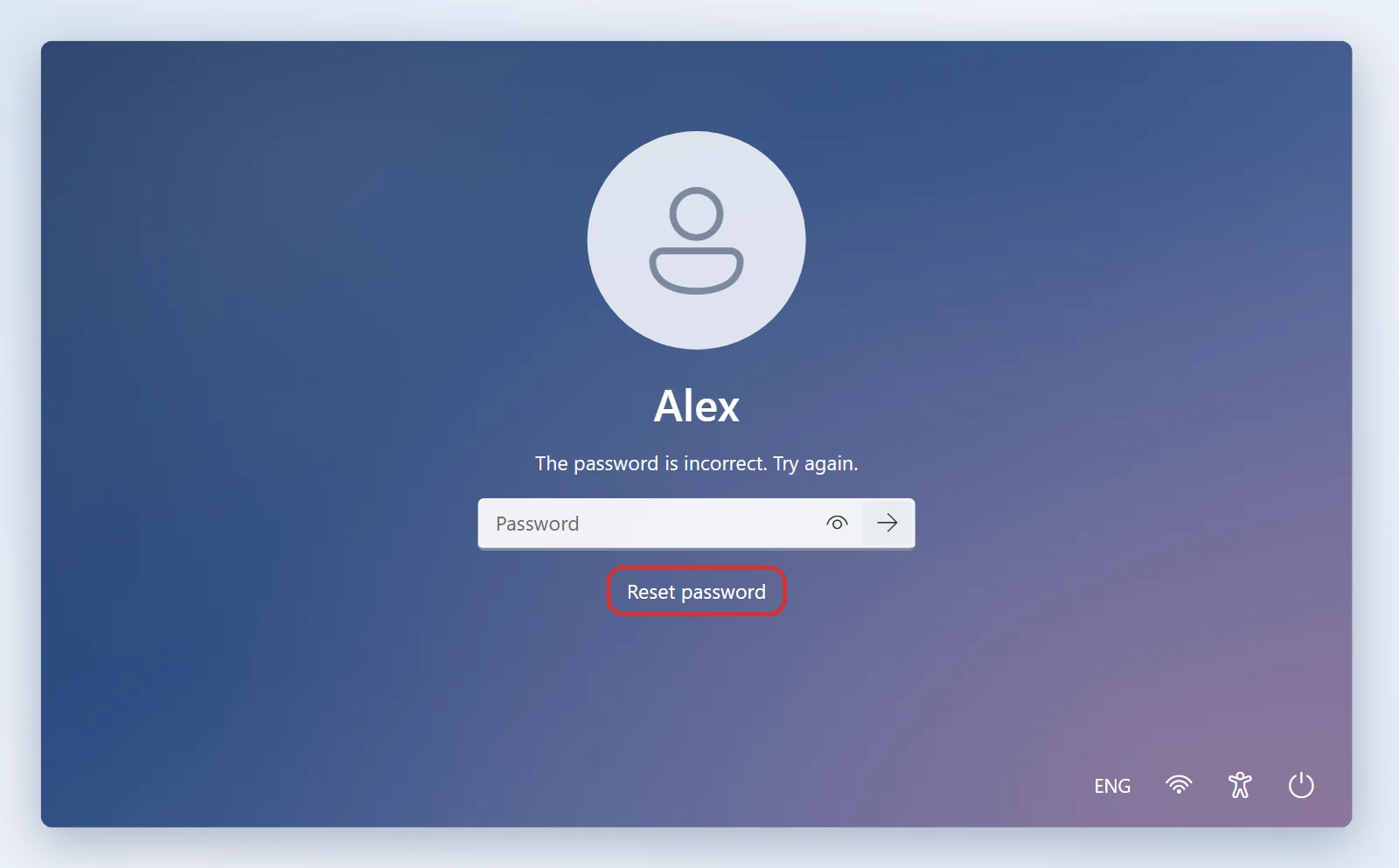
On the sign-in screen, select the arrow next to the password box (or the error message), choose OK, and then select Reset password.
Answer the security questions you chose when you created the account, and set a new password.
If you made a password reset disk, choose the option to use it and follow the wizard.
Fix 5: Use another administrator account
If someone else has an administrator account on the same PC, sign in with it. Resetting a password this way means the account loses saved passwords and any files encrypted with Windows' own file encryption, so use it only when you have no other option.
Right-click Start and open Terminal (Admin) or Command Prompt as administrator.
Run the command below, replacing
UserNamewith the account name. Windows asks for the new password and hides what you type.
net user UserName *On Windows Pro and Enterprise you can instead open Computer Management > Local Users and Groups > Users, right-click the account and choose Set Password. That console isn't present on Windows Home.
Fix 6: Safe Mode with Networking, and the last resort
If PIN or fingerprint sign-in is broken but your password works, hold Shift while selecting Power > Restart on the sign-in screen. Choose Troubleshoot > Advanced options > Startup Settings > Restart, then press 5 for Safe Mode with Networking. Only passwords work there.
If you have no working password, no recovery route and no second administrator account, the only supported option is Reset this PC (Settings > System > Recovery) or a clean install. This erases your files and apps. Back up your drive first where you can, and have your BitLocker recovery key ready if the drive is encrypted.
More information
Write down which type of account each of your PCs uses, and store the recovery email or phone details somewhere safe.
Add security questions or a reset disk to a local account while you can still sign in, or switch to a Microsoft account.
For a work or school account, contact your IT administrator. They reset passwords centrally.
Windows 10: The menus are the same under Settings > Accounts > Sign-in options. The PIN reset flow is also the same.
If Windows says "We can't sign in to your account", restart, try another account if there is one, and work through Microsoft's Troubleshoot problems signing in to Windows page.
Official instructions: Change or reset your PIN in Windows, Change or reset your Microsoft account password and Change or reset your local account password.
Was this article helpful?
Related articles
- Signs of malware (pop-ups, browser hijacked) or Windows Security won't open
Troubleshooting
How to spot a malware infection or a fake virus warning, clean the PC with Windows Security and a browser reset, and what to do when the Windows Security app itself won't open or stays blank.
Still need help? Can’t find the answer? Our team is happy to help. Contact us